Wednesday, December 8, 2010

10 Tips N Tricks for Facebook

1. HOW TO: Add a Dislike Option to Your Status Update


“Like” buttons are everywhere on Facebook, and they’re everywhere on the web. But what if you want to update your status or share something that your friends can “dislike?” We know, your friends can choose to “comment” on your post, but where’s the fun in that?
The clever Status Magic Facebook app can add a dislike button to any status updates posted via the app. And if you wanted to really mix it up you can actually customize the second emotion to anything, such as “love,” “hate,” “disagree” or even “LOLs.”

2. HOW TO: Hide Status Updates From Certain People


Using Facebook’s general privacy settings (find these by hitting “account” on the top right of a Facebook page) you can select whether everyone, just friends or friends of friends can see your status updates. However, there is a way to narrow those options down even further.
You can select specific friend lists to see your status (relevant for work, special interest groups, etc.) or even individual people by name, which is useful for anyone organizing a surprise party.
To take advantage of these options, click the padlock icon just below your “what’s on your mind” box on your wall and a drop down menu should appear. Selecting “customize” will bring up more options such as “make this visible to” and “hide from” with the option to make your selection a default.

3. HOW TO: Pre-Schedule Status Updates


While SocialOomph, Sendible and HootSuiteHootSuite offer the same kind of service, the simplest way to schedule Facebook status updates is by using the easy, free Later Bro service.
Just sign in with Facebook Connect, select your time zone, type in what it is you’d like to say, set the calendar and clock to when you’d like to say it, and presto!

4. HOW TO: Tag People in Your Status Updates


This was quite a big deal when it was announced this past September, but from the amount of searches on the topic “how can I make someone’s name go blue in a Facebook status?” it seems it’s not universally known.
To mention someone in a status update just type “@” (a la TwitterTwitter) in the status bar and start typing their name as it appears on Facebook. An auto-generated list will then come up with people in your social circle whose name starts with the letters you’ve typed. The feature also works with pages, brands, events and companies.
Hit the name you want, complete the update, click share and the name will become a hyperlink (you won’t see the @ symbol) and will appear in blue text.

5. HOW TO: Add Symbols to Your Facebook Status


Although there are plenty of emoticons that work with Facebook Chat, typing “:)” into Facebook’s status bar will not magically transform into a smiley yellow face. In fact, the only symbol you can create in a Facebook status update through the shortcut keys is a ♥, by typing “<3."
While this won't bother many Facebook users, others more used to punctuating their missives can copy and paste web-happy, universal symbols into the box, as you can see in the screengrab above.
PC users can also access some symbols by hitting “alt” + various number combinations (on a numerical keypad). So, while smileys are yet to hit Facebook statuses, you can annoy or amuse your buddies with symbols right now.

6. HOW TO: Turn Your Status Updates Into a Word Cloud


There’s a really fun way to visualize anyone’s status updates (even an entire country’s) as a word cloud. TheStatus Analyzer 3D app will look at what it is you’ve been chatting about lately and generate a list, and then a pretty, colorful, animated cloud as pictured above.
You can share the results with others on the social networking site by posting it to your friends’ walls or by adding it to your profile.

7. HOW TO: Have Fun With Facebook’s Humorous Language Options


While you can always change your setting into more sensible alternative languages, the site offers a couple of fun linguistic Easter eggs.
You can chose to have Facebook display upside down English, or, for anyone feeling a little salty, in “pirate.” Pirate essentially turns your status into your “plank,” your attachments into “loot” and instead of “share” it offers the option to “blabber t’ yer mates.”
Sadly, anything you type in the status bar won’t be upside down, or pirate-y. But with the use of some external sites you can achieve the same effect.
TypeUpsideDown.com and UpsideDownText.com are just two examples of sites that can flip your text, while the Talk Like a Pirate Day site can help you with your pirate translations.

8. HOW TO: See Status Updates From Around the World


If you want to get a glimpse of the thoughts of Facebook users from around the world’s, head over toOpenBook.
Created by three San Fran web developers with a serious privacy message in mind, the site aggregates the status updates of everyone whose privacy levels are set to “everyone.”
You can narrow your searchable results down by gender and keywords to find out what people are saying about a certain topic. Or you can just browse the recent searches.

9. HOW TO: See Your Status Update Stats


Have you ever wondered how many times you have updated your status on Facebook? The Facebook appStatus Statistics, can tell you this and more.
The app analyzes your updates and gives you a tidy list of how many you’ve written, the average word count and how many times a day you post. In addition, it generates a graph that shows you what time of day or what days of the week you normally update.
Old statuses are also searchable via the app, so you can find that witty retort you made back in November 2009 without having to scroll back through your history.

10. HOW TO: Play a Trick On Your Friends in Your Status Update


We have a funny one to end on — a way to play an amusing trick on your Facebook buddies.
This clever link “http://facebook.com/profile.php?=73322363″ looks like it could be a URL for anyone’s Facebook profile, actually takes anyone logged into Facebook to their own profile page.
If you try it out, be sure to remove the link preview that Facebook auto-ads.

Monday, December 6, 2010

COMPUTING WORK DAYS IN A DATE RANGE in EXCEL

COMPUTING WORK DAYS IN A DATE RANGE
Reader Leon Graves asked how to find the number of weekdays between two dates, excluding holidays. Since he didn’t specify which Office application he was using, I’ll start with Excel, since that’s the easiest. Believe it or not, the Excel Analysis ToolPak contains a Visual Basic for Applications (VBA) function designed for this very purpose!

In a cell, enter: =NetWorkDays(“01/01/2001”,”03/31/2001”) and tab out of the cell. It should show 65, the number of weekdays in the first quarter of 2001. Changing your function to =NetWorkDays(“01/01/01”,”03/31/01”,{“01/01/01”,”02/19/01”}) eliminates New Year's Day and President's Day, yielding 63 work days.

To eliminate a longer list of holidays, replace the third function parameter with a range of cells containing the dates to be excluded. For example, =NetWorkDays(“01/01/01”,”12/31/01”,E1:E12) where column E contains a list of holidays in rows 1 through 12.

If the NetWorkDays function is not available, run the Setup program to install the Analysis ToolPak. After you install the Analysis ToolPak, you must enable it by using the Add-Ins command on the Tools menu. More information on the NetWorkDays function can be found in Excel’s help file.

Public Function WorkDays(D1 As Date, D2 As Date) As Long
            Dim vDate As Date, vHolidays(2) As Date, I As Integer
            'Initialze variables
            vHolidays(1) = "01/01/01"
            vHolidays(2) = "02/19/01"
            WorkDays = 0
            vDate = D1
            'Loop through the rnge of dates
            While vDate <= D2
            If Weekday(vDate) > 1 And Weekday(vDate) < 7 Then
            WorkDays = WorkDays + 1
            End If
            For I = 1 To 2
            If vDate = vHolidays(I) Then
            WorkDays = WorkDays - 1
            End If
            Next I
            vDate = DateAdd("d", 1, vDate)
            Wend
            End Function
            
The array vHolidays could be expanded to hold more dates and it could be loaded from a table if you wish.

Increase Battery Life of Apple iPhone iPad and iPod

Posted: 26 Nov 2010 08:12 AM PST
Many of us have problems similar to battery drains out completely very sooner than expected, sometimes it happens due toward excessive use of applications which run in background without our consent or too sometimes your battery might be a faulty one. So, if your battery is alright plus even if you feel that the battery is emptied up beautiful quickly then all you will be alive requiring is some tips to keep your battery running for quite a long period of occasion. We will be discussing about some simple tips which overall are common but are left out by us manier times……
Keep your device in cool place:
First plus the foremost tip is never ever expose your iPhone otherwise your iPod in a hot carotherwise in a sunlight as heat kills the batteries faster than any other factor. Always try and store your iPhone otherwise iPod in a cool or in a mild environment…….
Turn Display Brightness to automatic
Second the majority important thing is always stay the display brightness in the automatic mode and never set your display designed for maximum brightness as it will eat up extra than 80% of the battery only designed for displaying things which in turn reduces the battery charge very quickly, still sooner than expected. If you are not sure about how to set the device’s brightness to automatic, then all you require to do is toward first go toSettings, then select Brightness & Wallpaper to adjust the default brightness manually toward as low as 30% otherwise even you can leave it as Automatic, by checking the option of Auto Brightness.
Set minimum duration for Auto Lock
Third the majority significant and basic tip designed for optimizing or developing your battery charge is always set auto lock duration to a minimum available occasion similar to in case ofApple products is 2 minutes. If you want toward set the lock duration automatically after that first head to Settings plus then toward Auto Lock plus select the minimum duration similar to say 2 minutes. This sometimes makes a big difference as if the auto lock duration is great similar to say 5 minutes or 10 minutes, the battery drains out at a very faster rate……
Apply Airplane Mode when Internet is not required (iPad / iPhone)
If you are traveling or interested in playing games designed for some occasion and if network is weak then prefer toward choose Airplane mode where at least it will keep on searching designed for Network in the background which indeed eats up the majority of the battery. Most of the times this tip is not followed otherwise sometimes ignored but trust me when you are traveling its advised to turn your phone either completely off till you reach your destination otherwise at least turn Airplane mode ON if you plan toward listen toward music otherwise read some e books on your device……
Prefer using Wi Fi than 3G
If we go by the words of Apple, the battery charge in i Pad will last for 10 hours under regular use with Wi Fi but will only last for 9 hours if we apply 3G network whereas iPhonewill last designed for 6 hours if used resting on 3G net plus 10 hours if used resting on Wi Fi. So you can save a 10% battery in your iPad and a whopping 40% battery charge resting on your iPhone if Wi Fi is preferred than 3G. To enable Wi Fi, go toward Settings and tap on Wi Fi toward select your Wi Fi net……
Reduce or Eliminate Mail Checking automatically
If you’ve took a bunch of emails and if you are the person who checks extra usually then its recommended to set the fetching of mails manually rather than automatically as this too saves a battery by a very fair amount. Head to Settings plus after that tap on Mail, Contacts,Calendars plus choose Fetch New Data plus change the setting to the least frequent check possible that is nothing except manually. If you don’t use it often, you can just turn Push off entirely plus after that manually check when you require toward……
Reduce or Eliminate Push Notifications
It is always advised that the notifications from twitter plus other IMs should be turned off when you are busy in some work or when not needed. Every you need to perform is toward only head toward Settings, select Notifications and save a bit of extra battery life because your device won’t be alive extracting the data continuously from the internet regularly…….
Reduce or Eliminate System Sounds
It may sound bit of a silly but its better toward remove the system sounds as almost every occasion you use your device this eats up your batter regularly whenever you tap resting on your display. Designed for this Head into Settings and then choose General and after that tap resting on Sounds toward change the options……
Disable Location Services
Disable every location based services toward further save the battery drain. Only go to Settings, after that toward Universal and flip the Location Services setting toward Off…..
Disable Blue tooth when not needed
If you don’t use bluetooth extra often after that don’t use Blue tooth head set otherwise even blue tooth keyboard as communication between both eats up battery by a fair amount. For setting this up, go toward Settings then to General plus after that tap on Blue tooth and flip it to Off…..
Charge and Discharge Battery Regularly
Make sure that at least once in a month your i device discharges completely so that your battery efficiency is increased and never keep your phone for overnight charge as this may ware out your batter by nearly 5 times than regular apply plus also never charge repeatedly even if it is extra than 85 – 90 % as your battery tends to die down quickly than expected……
Disable Vibrate Feature in Games
Always remember to disable the vibrate feature while playing games as whenever your phone vibrates internally the motor runs and designed for that motor toward run it requires battery so it is better toward turn off vibrate feature while playing games which will further save your battery……
So above mentioned are the twelve tips which are small and simple except many times we ignore. Except if all the above steps are followed then you be able to make the the majority of your battery with a single full charge……

Upgrade Official Android 2.2 for the Samsung Epic 4G

Posted: 05 Dec 2010 07:51 AM PST
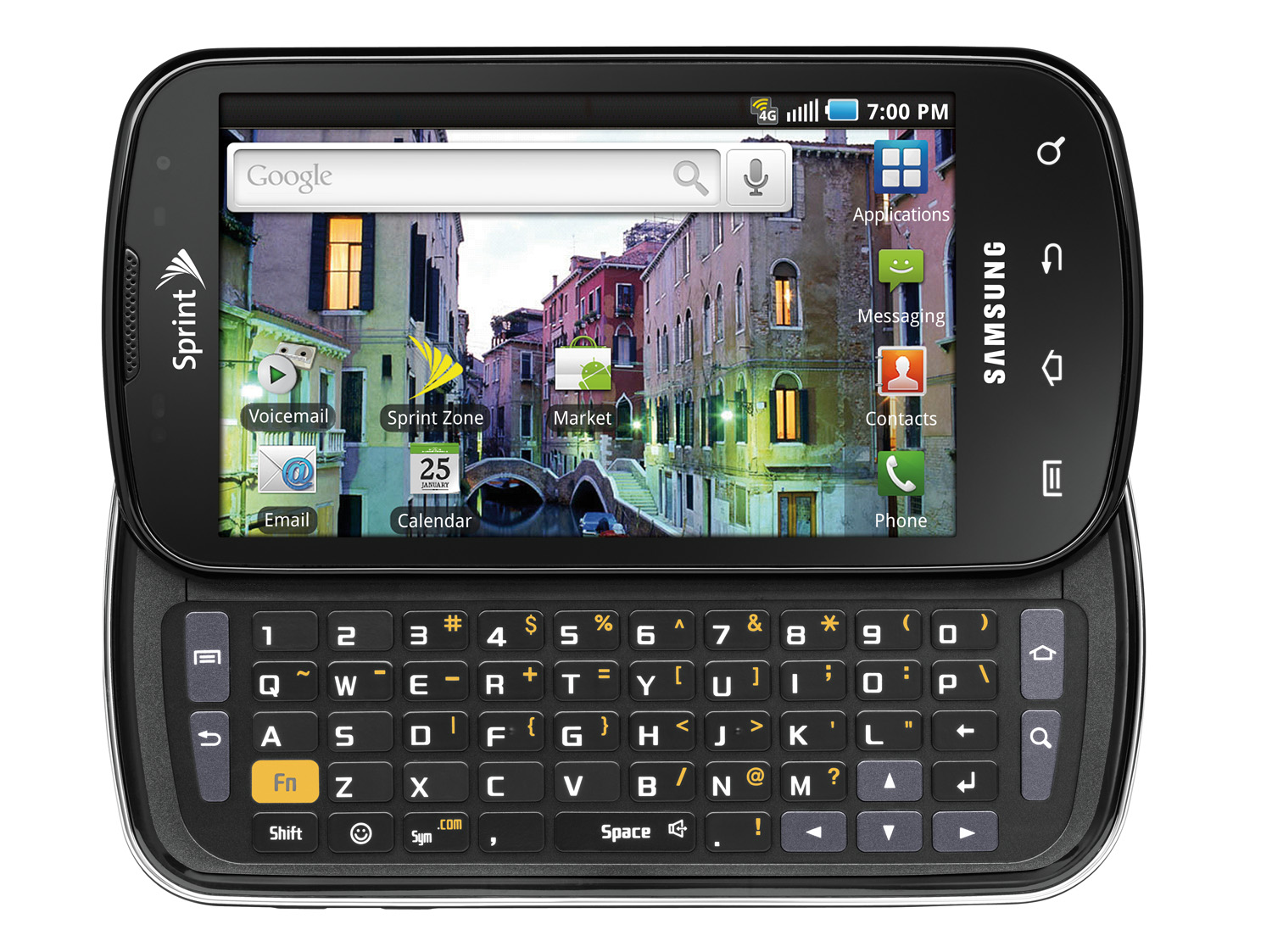
Though we’ve gotten the update in the form of leaks for several US variants of the Samsung Galaxy S, no one has seen an official rollout yet. Sprint has beat everyone in America to the punch – just as they did with the Froyo update for the EVO – and is now offering Android 2.2 for users of the Samsung Epic 4G.
SamsungEpic4Gopen
If you haven’t received it over the air, you’ll be able to manually download and install the update yourself. Instructions for that can be had below, courtesy of Brief Mobile. If you are the type who would rather wait for it to be pushed to you, then you’ll be seeing it anywhere between now and the end of the month. The process is really easy, though, so if you have been waiting for this, there should be no reason to not jump on this as soon as possible.
Instructions: Update Android 2.2 Froyo for Epic 4G
Intended for those going from stock Android 2.1 to the latest firmware.
  1. Download the required update.zip file (Mirror: http://www.multiupload.com/EBDH959PPM)
  2. RENAME the file to “update.zip”
  3. Move the file to your storage on the Epic 4G (Mount USB storage and drag the update.zip into root-highest-up folder)
  4. Boot your device into “recovery mode”
  5. Apply the sdcard update.zip from Recovery Mode
  6. Congratulations! You now have Android 2.2.1 Froyo (DK28) on your Samsung Epic 4G from Sprint!
Alternate Instructions: Update Android 2.2 Froyo for Epic 4G
Intended for those going from any other version of Android to the latest firmware.
  1. Download the required .tar file
  2. Download Odin
  3. Open up Odin and put your phone into “download mode” (Turn off your phone, wait until the lights turn off. Hold “1″ on the keyboard while powering up)
  4. Plug your device in
  5. Place the .tar file in the PDA slot
  6. Start flashing
  7. Congratulations! You now have Android 2.2.1 Froyo (DK28) on your Samsung Epic 4G from Sprint!

Sunday, December 5, 2010

Nokia Secret Codes

1 Imagine ur cell battery is very low, u r expecting an important call and u don't have a charger.

Nokia instrument comes with a reserve battery. To activate, key is "*3370#"

Ur cell will restart with this reserve and ur instrument will show a 50% incerase in battery.

This reserve will get charged when u charge ur cell next time.

*3370# Activate Enhanced Full Rate Codec(EFR)
-Your phone uses the best sound quality but talk time is reduced by approx 5%

#3370# Deactivate Enhanced Full Rate Codec( EFR)

*#4720# Activate Half Rate Codec - Your phone uses a lower quality sound
but you should gain approx 30% more Talk Time

*#4720# Deactivate Half Rate Codec

2 *#0000# Displays your phones software version,

1st Line : SoftwareVersion,
2nd Line : Software ReleaseDate,
3rd Line : Compression Type

3 *#9999# Phones software v ersion if *#0000# does not work

4 *#06# For checking the International Mobile Equipment Identity (IMEI Number)

5 #pw+1234567890+1# Provider Lock Status.
(use the "*" button to obtain the "p,w" and "+" symbols)

6 #pw+1234567890+2# Network Lock Status.
(use the "*" button to obtain the "p,w" and "+" symbols)

7 #pw+1234567890+3# Country Lock Status.
(use the "*" button to obtain the "p,w" and "+" symbols)

8 #pw+1234567890+4# SIM Card Lock Status.
(use the "*" button to obtain the "p,w" and "+" symbols)

9 *#147# (vodafone) this lets you know who called you last *#1471# Last call (Only vodofone)

10 *#21# Allows you to check the number that "All Calls" are diverted To 

11 *#2640# Displays security code in use

12 *#30# Lets you see the private number

13 *#43# Allows you to check the "Call Waiting" status of your phone.

14 *#61# Allows you to check the number that "On No Reply" calls are diverted to

15 *#62# Allows you to check the number that "Divert If Unrea chable(no service)" calls are diverted to

16 *#67# Allows you to check the number that "On Busy Calls" are diverted to

17 *#67705646# Removes operator logo on 3310 & 3330

18 *#73# Reset phone timers and game scores

19 *#746025625# Displays the SIM Clock status, if your phone supports this power saving feature
"SIM Clock Stop Allowed",it means you will get the best standby time possible

20 *#7760# Manufactures code

21 *#7780# Restorefa ctory settings

22 *#8110# Software version for the nokia 8110

23 *#92702689# (to rember *#WAR0ANTY#)

Displays -

1.Serial Number,
2.Date Made
3.Purchase Date,
4.Date of lastrepair (0000 for no repairs),
5.Transfer UserData.

To exit this mode-you need to switch your phone off then on again

24 *#94870345123456789# Deactivate the PWM-Mem

25 **21*number# Turn on "All Calls" diverting to the phone number entered

26 **61*number# Turn on "No Reply" diverting to the phone number entered

27 **67*number# Turn on "On Busy" diverting to the phone number entered

28 12345 This is the default security code press and hold # Lets you switch between lines

BeSt Yahoo-Messenger-10-Tricks

1. Grab and Save Someone Yahoo Messenger Avatar- Yahoo Messenger Avatar is a Picture or Image that represent the owner of the avatar of yahoo Messenger user(s). At this time, we would give you a simple trick to grab the avatar of yahoo messenger from somebody else / someone else they get and save it to your storage disk in your local computer (desktop, PC an else). You can then use that avatar for your own avatar or just share with your friends. More Details

2. Tweet Away Your Messages using Yahoo Messenger: Twitter-Sync is a new plug-in from WackyB that lets you keep Twittering away when using your favorite Instant Messenger. It keeps your Messenger status and Twitter in synchronization with each other. By changing your Yahoo! Messenger status updates your Twitter automatically! More details

3. Trick To Login Multi Yahoo Messenger 10 - If you have multiple yahoo ID's and wants to login with more than one yahoo ID at the same time then don't worry, you can login with more than one yahoo ID at the same time using this tip. There is no need to install any other yahoo multi messenger version, you can easily covert your normal yahoo messenger into multi messenger and enjoy your many ID's at the same time. More details 

4. Remove Annoying Ads from Yahoo Messenger 10 - To remove and disable ads displaying on Yahoo Messenger 10. Remove the irritating Yahoo Messenger ads using Yahoo messenger Ad Banner Remover Plus

5. Detect The Invisible Person in Yahoo Messenger - Does anyone cheating you on yahoo messenger , keeping you in stealth mode so whenever they come online they appears to be offline or invisible in your messenger. Now no more hide and seek. More Details 

6. Yahoo Messenger Keyboard Shortcuts Keys- For some yahoo users, using mouse to open feature(s) in Yahoo Messenger make a little time longer if they didnt know the location links of the features. It is faster and easier if they try to use Keyboard Shortcut to open those features or application. More Details

7. Hidden Yahoo Messenger 10 Emoticons: Surprise your friends with these hidden yahoo emotions and smileys. You won't find these in the emoticon menu, but you can send them by typing the keyboard shortcuts directly into your message

Yahoo Messenger Shortcut Keys

Yahoo Messenger Shortcut Keys


Yahoo Messenger is one of the most user IM clients in the world, and many users use it for to IM at work, IM with friends and family and more. Yahoo messenger has severalshortcut keys, using which you can buzz a person, add emoticon/smileys to your messages and more.
These Shortcut Keys will help you to Chat Fast.

General Use Shortcut Key


  • Windows Key + Y – Bring Yahoo Messenger to Focus, works even if Yahoo Messenger is sitting in the system tray.
  • Ctrl + G – Buzzes the contact you are chatting with.
  • Ctrl + H – Show or Hide offline contacts in main messenger Window.
  • Ctrl + Shift + P – Open preferences window.
  • Ctrl + M – Provides a option to send a Instant message.
  • Ctrl + T - Provides a option to send a SMS message.
  • Ctrl + L – Provides a option to make a call.
  • Ctrl + K – Provides options to Call a phone number.
  • Ctrl + Y – Send a email message.
  • Ctrl + Shift + A – Provides options to add a contact.
  • Ctrl + Shift + 0,1 or 2 – Switches between different messaging formats provided byYahoo Messenger 9 and above.
  • Esc key – Closes a active message window.
  • Ctrl + D – Sign out of Yahoo Messenger.
  • Ctrl + Shift + D – Sign out of Yahoo Messenger client and sign in to your mobile device.
  • Ctrl + Shift + F8 – Change your display Image.
  • Ctrl + Shift + C – Send you contact info in a active chat window.
  • Ctrl + Shift + M – Send you messenger friend list in a active chat window.
  • Ctrl + Shift + R – Request contact details in a active chat window.

Messaging Window Editor Shortcut Keys

  • Ctrl + B – Toggle bold on or off, or convert selected text to bold.
  • Ctrl + I - Toggle italic on or off, or convert selected text to italic.
  • Ctrl + U - Toggle underline on or off, or convert selected text to underline.


Yahoo Messenger Emoticons / Smiley Shortcut Keys

All the emoticons Yahoo has can be sent using your keyboard, most of the popular are :) for happy, :( for sad, ;) for winking, :D for big grin and so on. Yahoo messengerprovides you with a complete list of shortcuts for typing in emoticons, in addition to the normal emoticons there are also several hidden emoticons which are not even available from Yahoo Messenger and requires you to use keyboard shortcuts.


Want more such hidden emoticons, check out the Yahoo Messenger page for hidden emoticons.